Worldofcin |
HomeWelcome to my website! Happy 50th birthday, Shawn!
-- 1a --
--1-
-- 1b --
--2- --3- --4-
--4 -- html5 version --
--5-
--6-
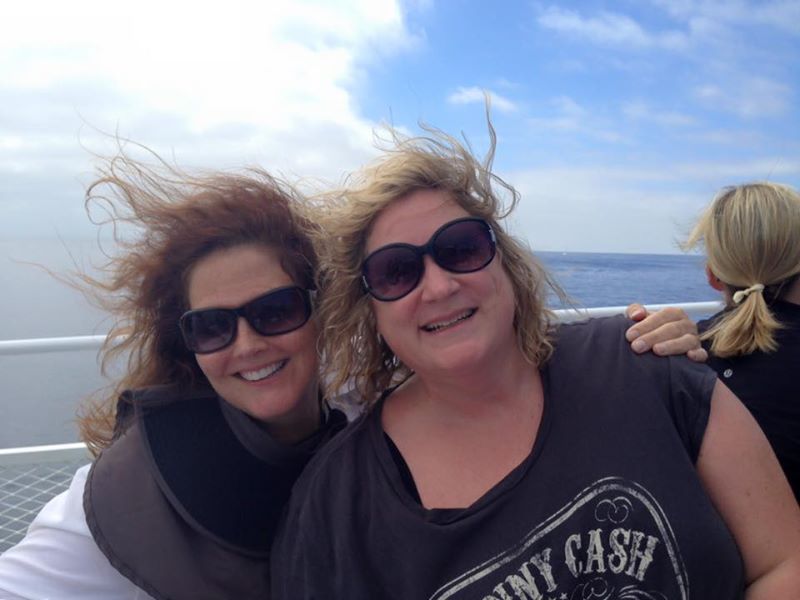 Link to this picture. I think this is pretty representative of my feelings today... :)  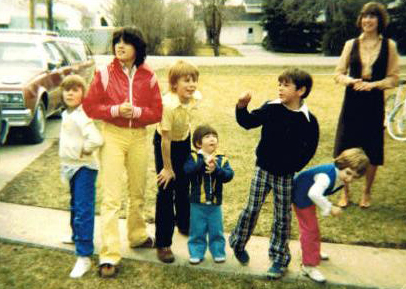 Me and my cousins, I'm the one on the right sticking out my backend in the blue shirt with red pants. LOL this makes me laugh - what a bunch of hams... 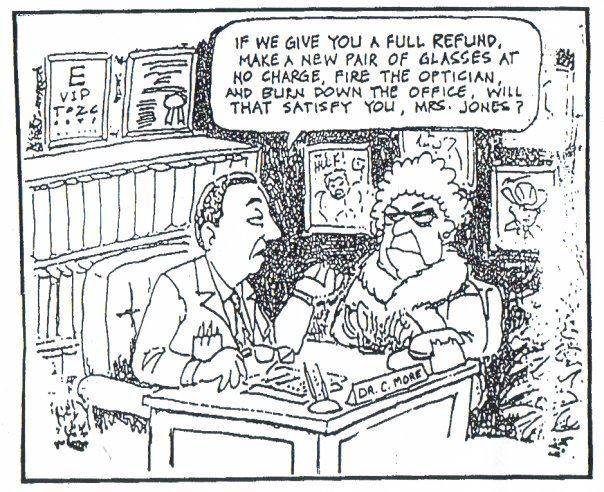 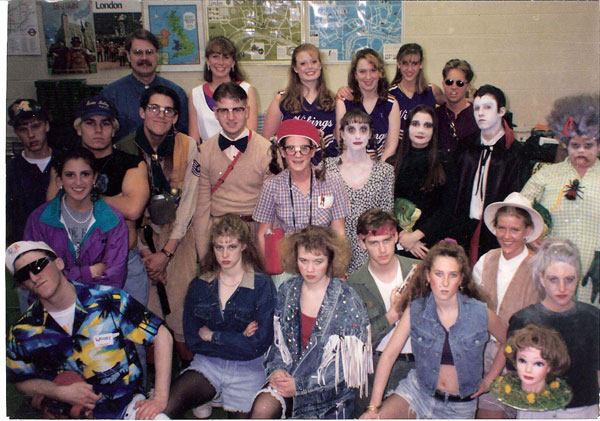 I am the nerd in the middle with the bandaide on my glasses and sun visor. "Funny you are the broken one but I'm the only one that needed saving" Today is the first day of the rest of my life.
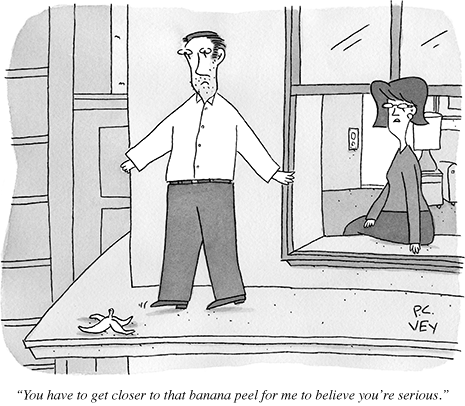  Believe your life is worth living and your belief with help create fact.
William James
"Today may there be peace within. May you trust that you are exactly where you are meant to be.
May you not forget the infinite possibilities that are born of faith in yourself and others. May you use
the gifts that you have received and pass on the love that has been given to you. May you be content
with yourself just the way you are. Let this knowledge settle into your bones, and allow your soul the
freedom to sing, dance, praise and love. It is there for each and every one of us." Effort and hard work construct the bridge that connects your dreams to reality. Those who make steady efforts are full of hope. And hope, in turn, arises from steady efforts. Embrace your dreams and advance as far as they can take you. by Daisaku Ikeda Our Destiny is Our Choice.
 |